The board
The Dashboard is a board of tiles you arrange yourself, the screen you run a session from. This guide covers the rail, arranging tiles, having more than one board, and showing things to your players on a second screen or their phones.
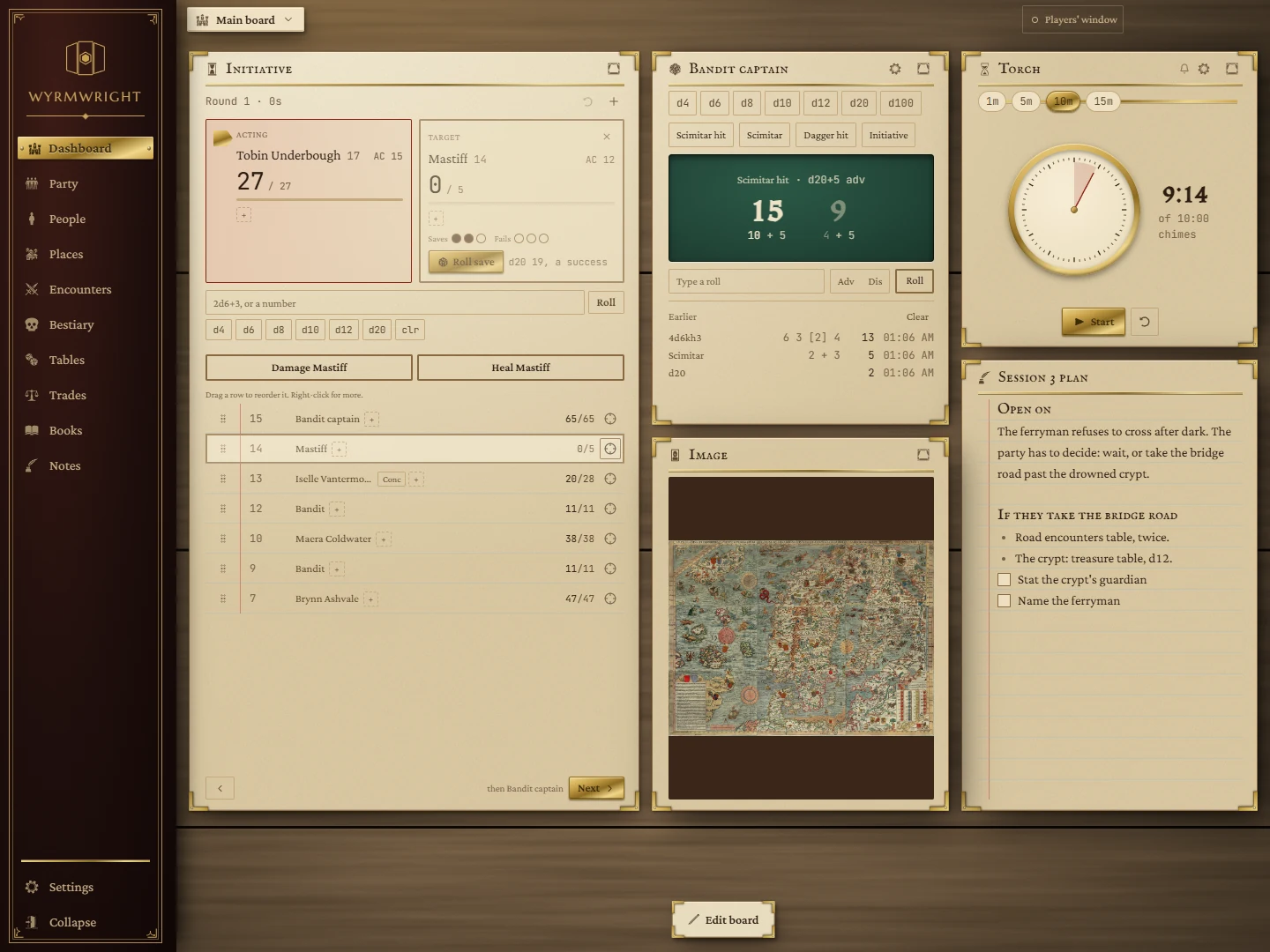
Around the screen
- The rail on the left lists the Dashboard and the campaign pages, with Settings at its foot. Collapse folds it down to icons (hover one for its name); it stays the way you leave it.
- The board tag at the top left (Main board) opens the Boards menu.
- The players' pill at the top right shows what your players can see, and opens the players' window panel.
- The dock at the bottom centre holds Edit board. It also briefly shows messages from tiles, sometimes with an Undo.
Arranging tiles
Press Edit board. The grid appears and every tile can be moved and resized.
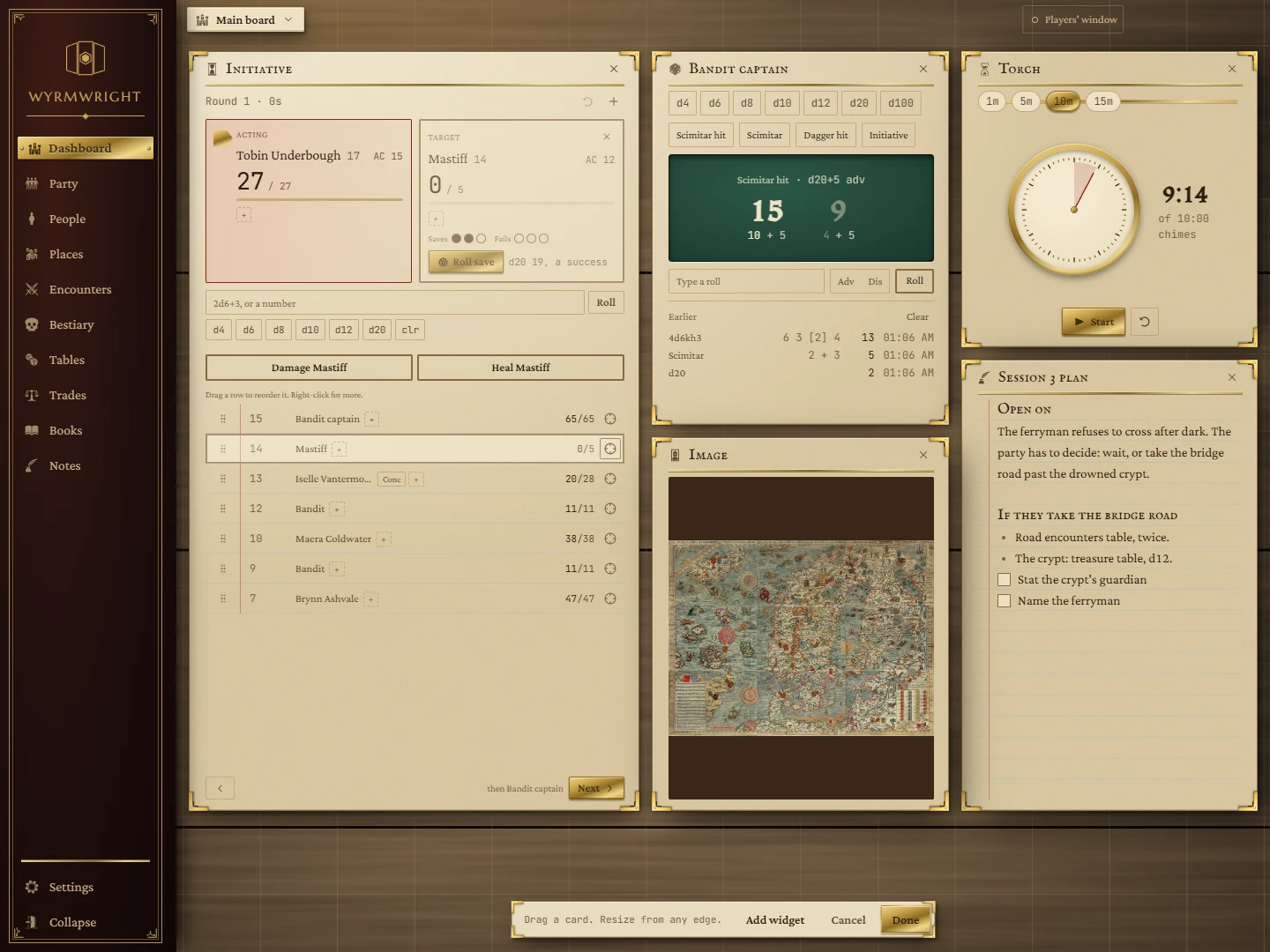
- Move: drag a tile from anywhere on it (not on its buttons or boxes).
- Resize: drag any edge or corner. Each widget has a smallest size.
- Remove: the cross in a tile's title bar takes it off the board. A note tile's words stay in your Notes library.
- Send to another board: when you have more than one board, a button in the title bar sends the tile, with everything in it, to the foot of another board. The dock offers Undo.
Changes save as you go. Press Done to finish, or Cancel to put everything back the way it was when you pressed Edit board (removed tiles come back whole). While you arrange, tiles' own buttons are hidden and web pages ignore clicks.
Adding a widget
In edit mode, press Add widget and pick from the list. The new tile lands at the bottom of the board; drag it where you want it.
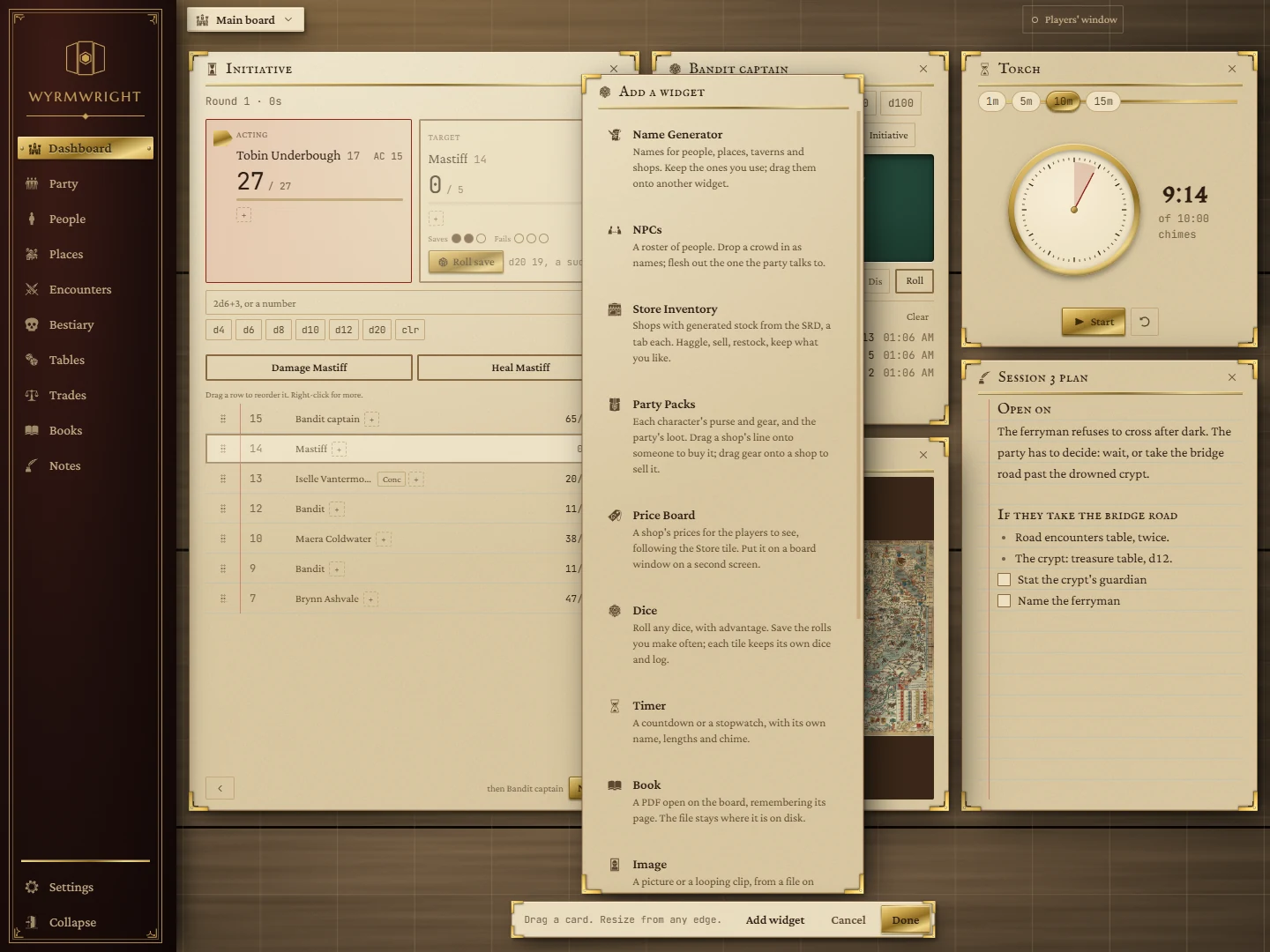
Some widgets can be on the board several times (Dice, Timer, Notes and others), each with its own contents. Others are one per app: Initiative, Name Generator and Party Packs. If one of those is on another board, the menu offers Move here.
Board sizes
The number of columns follows the width of the window, so a wider window fits more tiles across rather than making each one wider. The board remembers a separate arrangement for narrow, medium and wide windows, so an arrangement made on a big monitor isn't spoiled by using a laptop.
More than one board
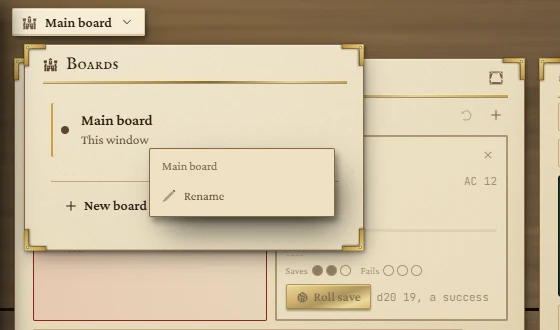
Click the board tag to open the Boards menu. Each board is listed with where it is (This window, Open on the right screen, Closed · 4 tiles).
- New board makes a board and opens it in its own window, on another screen if you have one. Type its name straight away.
- Click a board's name to open or bring forward its window.
- The ⋯ beside a board offers Open its window, Rename and Delete board…. Deleting a board with tiles asks whether to move them to the Main board (with their dice, logs and names) or delete them with it.
Board windows that were open when you closed the app open again next time, where you left them. A good use: a board on a screen facing the table, holding a Price Board or a map.
The players' window
A separate window for a TV or second screen, showing only what you choose. Click the pill at the top right to open its panel.
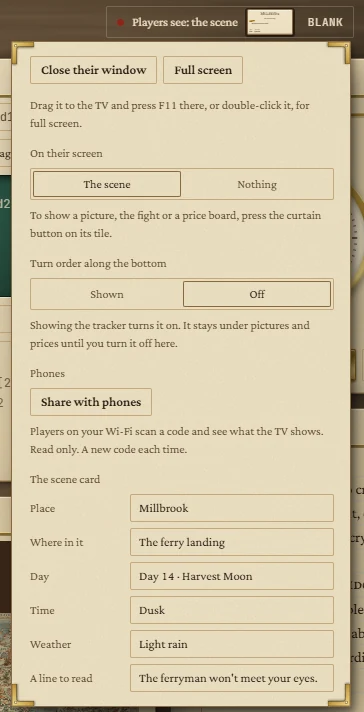
- Press Open the players' window. It opens on your other screen if there is one, and remembers where you put it. Drag it to the TV and press F11 or double-click it for full screen.
- Fill in the scene card: place, where in it, day, time, weather and a line to read aloud. It's what the players see between other things.
- To show something else, press the curtain button in a tile's title bar: Image, Initiative, Price Board, Timer and Dice tiles have one. Choose On the stage or Beside the stage. The button then reads On TV or Beside; press it again to take it away.
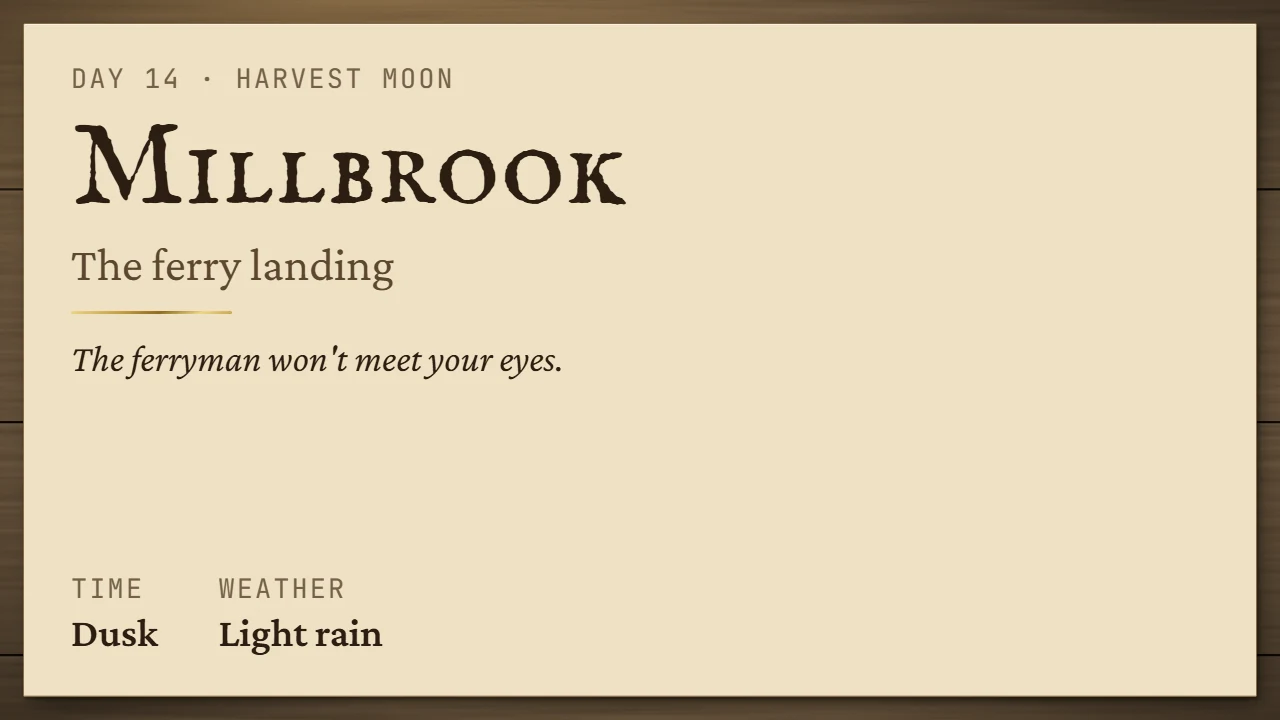
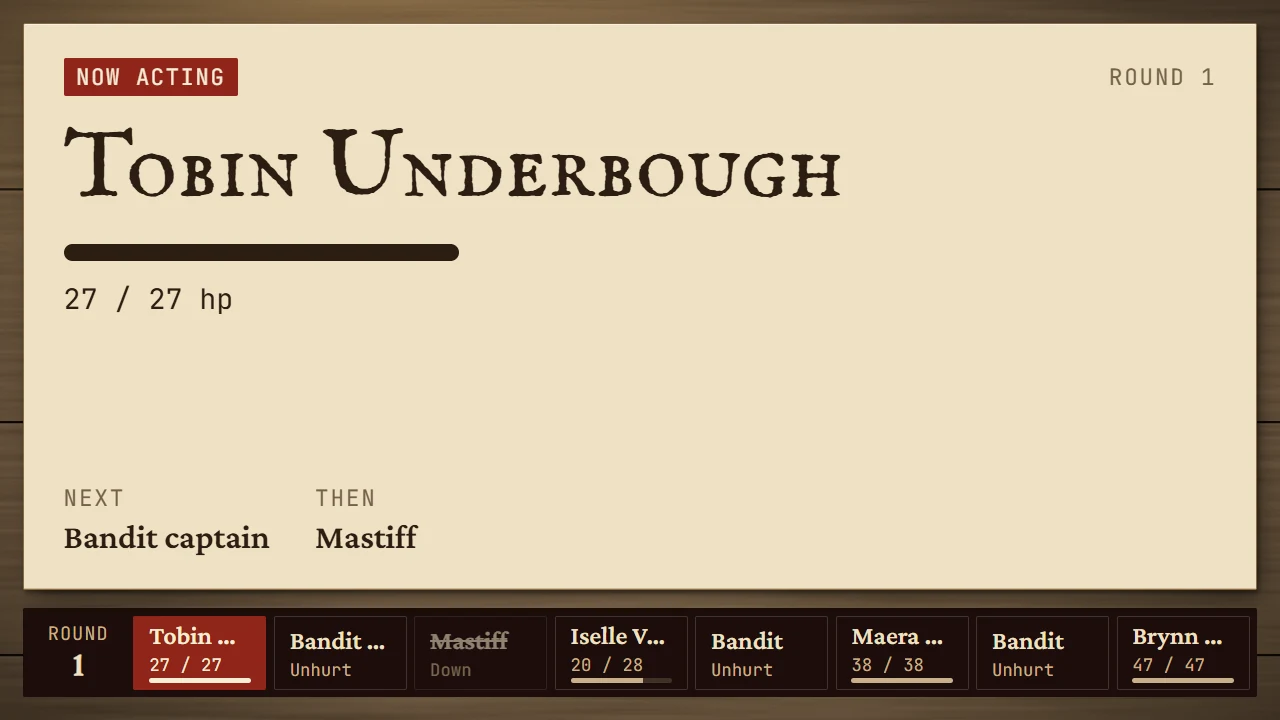
In the panel:
- On their screen: The scene or Nothing. The pill's Blank button blanks their screen in one press.
- Turn order along the bottom: keeps a strip of the turn order on their screen during a fight, under pictures and prices.
- The players' window shows nothing you haven't sent. Initiative numbers, hidden creatures, secret rolls and your notes never appear.
Phones
Press Share with phones and a QR code appears. Players on the same Wi-Fi scan it and see on their phones exactly what the TV shows, read only. Show the join code on the TV puts the code on the big screen for everyone to scan. Stop sharing ends every phone; the next code is a new one. Windows may ask whether to allow WyrmWright on your network the first time.
If a tile has a problem
If something goes wrong inside a tile, that tile shows stopped because of a problem in it with a Start it again button. The rest of the board keeps running.