Image
A picture or a looping clip on the board: a map, a handout, a portrait or an animated scene. It comes from a file on your PC or an https link, and can be sent to the players' window.
- Default size
- 5 × 5 (smallest 3 × 3)
- More than one
- Yes
- Players can see it
- Yes, on the players' window
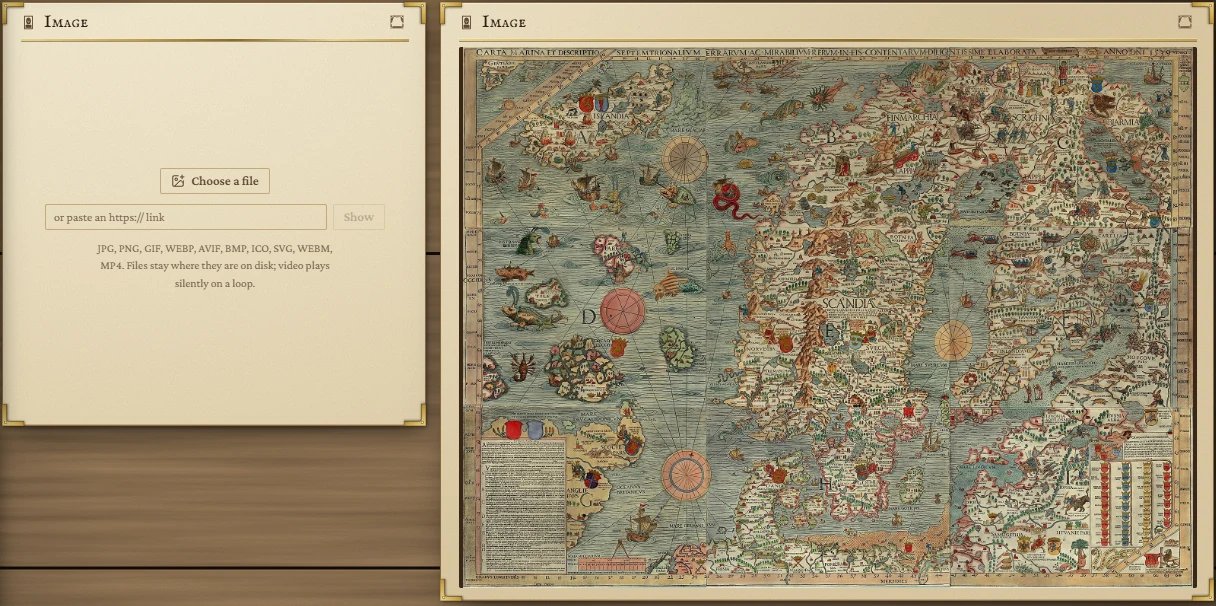
Choosing a picture
- From your PC: press Choose a file and pick an image or a video.
- From the web: paste an
https://link into the box and press Show.
The tile shows JPG, PNG, GIF, WEBP, AVIF, BMP, ICO and SVG pictures, and WEBM and MP4 video. A file you choose stays where it is on your disk: the app remembers where it is and never copies it, so moving or deleting the file breaks the tile.
Links must start with https://; plain http links, and links with a login in them, aren't shown.
On the tile
Hover the picture for two buttons in its top right corner:
- Fill the tile crops the picture to fill the tile; Show the whole thing fits all of it in.
- Choose another empties the tile so you can pick something else.
Video plays silently on a loop. Click it to pause or carry on. If your computer is set to reduce motion, video doesn't start by itself.
When a picture can't be shown
- This file has moved or been deleted. Hover to see where it used to be, then choose it again.
- That link cannot be shown. or This could not be shown. The link may have moved, need a login, or block other sites from showing it; or the file may be damaged.
Each of these offers Choose another.
Showing it to the players
Press the curtain button in the title bar and choose On the stage or Beside the stage. The picture as it is at that moment goes to the players' window; changing the tile afterwards doesn't change what they see. Press the button again to take it away. See The board.